
Turning on a Peloton Bike is usually simple: plug the power adapter into a wall outlet, connect it to the bike, and insert the power cord into the port on the back of the frame. In most cases, the screen should light up within seconds.
However, if your Peloton Bike or Bike+ won’t turn on, the process isn’t always that straightforward. Power issues, loose connections, or hardware glitches can stop the bike from starting—even when everything looks properly connected.
That’s why this guide walks you through the exact steps to power on your Peloton correctly, followed by proven troubleshooting methods to fix common issues when the bike stays completely dead. Whether you’re setting up for the first time or dealing with a sudden power failure, you’ll find clear, practical solutions below.
How to Turn On Peloton Bike
Turning on a Peloton Bike is straightforward—even if you’re a complete beginner. Follow these simple steps to get started:
- Plug in the power cord
Insert the power cord firmly into the power jack located at the bottom rear of the bike frame. - Connect to a power source
Attach the power cord to the adapter, then plug the adapter into a wall outlet. Make sure the outlet is switched on. Peloton bikes support 100–240V, so standard household outlets work fine. - Turn on the tablet
Press and hold the power button on the back or side of the Peloton touchscreen until the screen lights up. - Connect and log in
Once the tablet boots up, connect it to your Wi-Fi network and sign in to your Peloton account.
How long does it take for a Peloton to turn on?
In most cases, the screen powers up within 5–10 seconds after pressing the button. If nothing happens after that, it’s not normal—and it usually means there’s a power or hardware issue.
Before contacting Peloton customer support, go through the troubleshooting steps in this guide—you can often fix the problem yourself in just a few minutes.
Peloton Won’t Turn On
We will discuss common problems and solutions when peloton screen won’t turn on
- For Peloton Bike Plus
- And separately for peloton Regular bike
Peloton Bike + Won’t Power On or Calibrate
Firstly check Power plug and power brick are fully connected; then also check the round barrel connector on the backside of the bike; the Bike + has a white light that will glow if it is connected correctly.
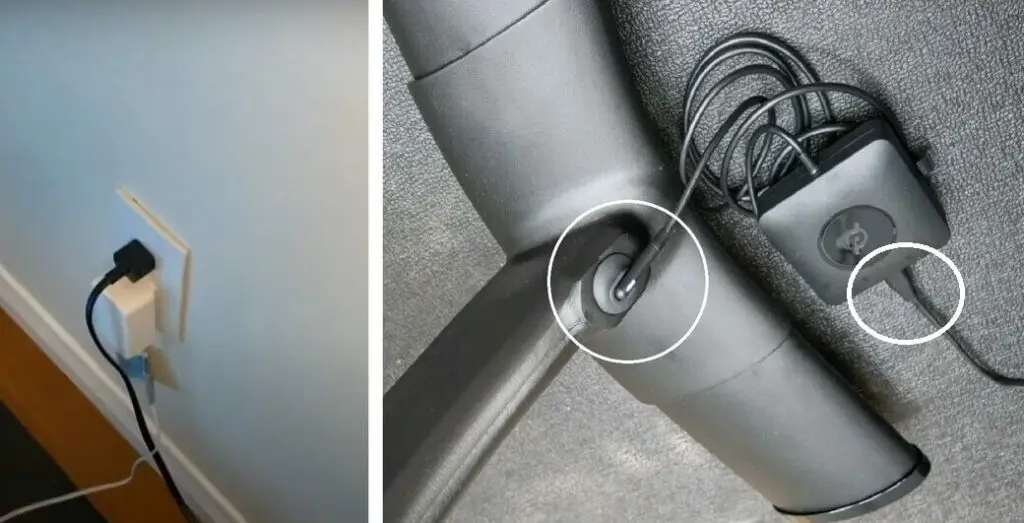
The bike plus uses a USB type C cable. Therefore, it is easier to troubleshoot a power problem with the bike.
If the Bike+ tablet won’t power on after holding the power button for 10+ seconds then perform the following steps.
Remove the power cable from the back rear of the bike and connect it directly to the middle power hole on the back of the display. If the tablet powers on after performing this step, then the problem is a loose wire snaked through the bike. This is likely an easy fix.
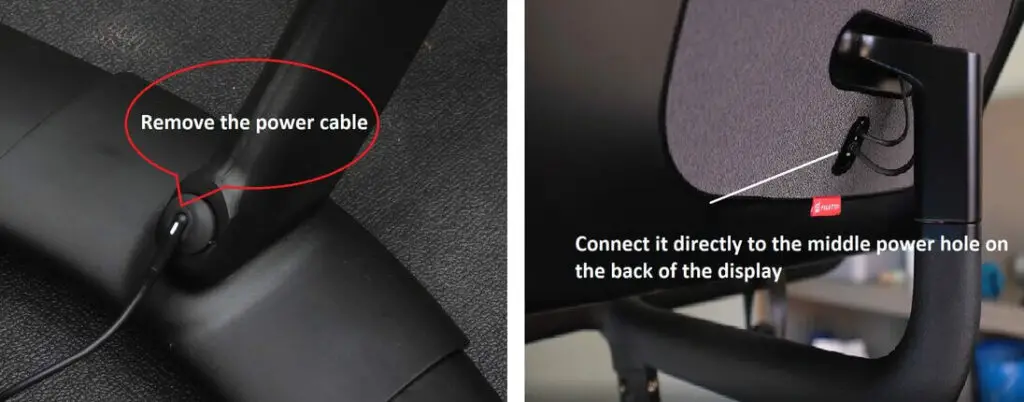
If the tablet does NOT power on, and the power brick has the white LED, then you may have a defective display tablet.
There are 3 other primary locations where the USB-C cable snakes through the bike frame.
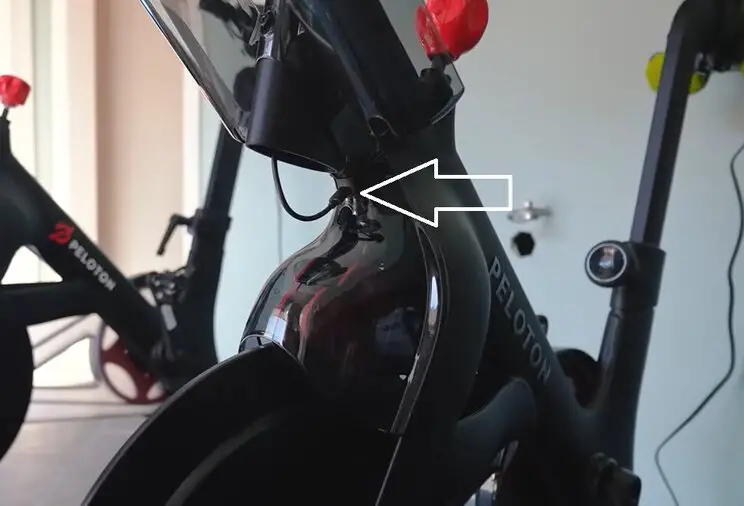
1. The most common problem is a loose cable that is in a difficult location to see directly below the orange resistance knob. This cable has often come loose days or weeks AFTER delivery and so it can happen at any time. Below VIDEO shows where to find the cable connection that may be lose. It’s in a tight spot so you will need small hands or needle nose pliers.
2. The cable which snakes from under the resistance knob up to the handlebars connect out the front of the bike under the handlebars. Make sure this cable is connected tightly.
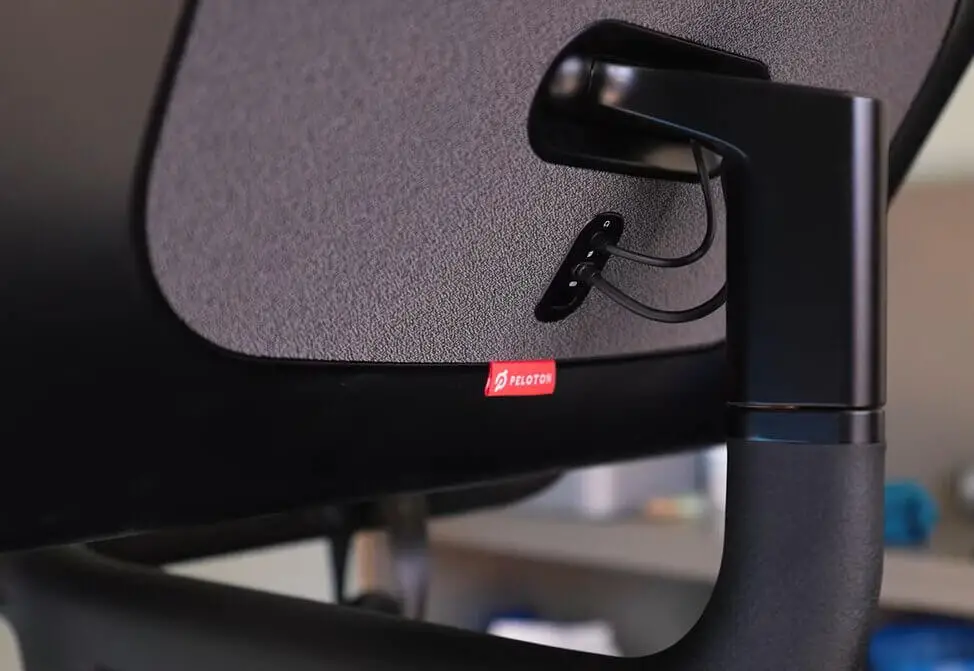
3. Deliver teams have been known to incorrectly connect the USB-C power cable on the back of the display to the bottom port. The correct port is the middle port as shown below. I’ve talked with bike + owners whose bikes have worked for a few days before stopping only to find the cable connected to the wrong port on the back.
If the peloton screen doesn’t turn on, try to hard reset the Peloton tablet.
How to PELOTON TABLET HARD RESET
If your screen is frozen or completely unresponsive, a hard reset is often the fastest way to bring your Peloton tablet back to life.
Follow these steps carefully:
- Press and hold the POWER button on the back of the tablet for 10 seconds.
- On newer Peloton tablets (Gen 3 or Gen 4), you may need to hold it for up to 15 seconds.
- Keep holding the button even if you see a prompt asking whether you want to power down—do not release it.
- Continue holding until the screen goes completely black and the Peloton logo appears, then release the button.
- The tablet will automatically reboot and reset internal hardware components during this process.
A full restart usually takes 30–40 seconds, after which you should be able to log back into your profile. In many cases, this simple reset is enough to restore normal tablet function.
What if the Peloton Bike+ screen still won’t turn on?
If the tablet remains completely dead after a hard reset, the issue is likely hardware-related. At that point, you’ll need to contact Peloton Support, as the tablet may require replacement rather than troubleshooting.
For Peloton Regular Bike, when not turning on
Firstly check all the Connections when your peloton not turning on.
Make sure that Cord is fully connected to the power brick. Ensure the power brick has a GREEN LED lighted to confirm you have AC power to the power brick.
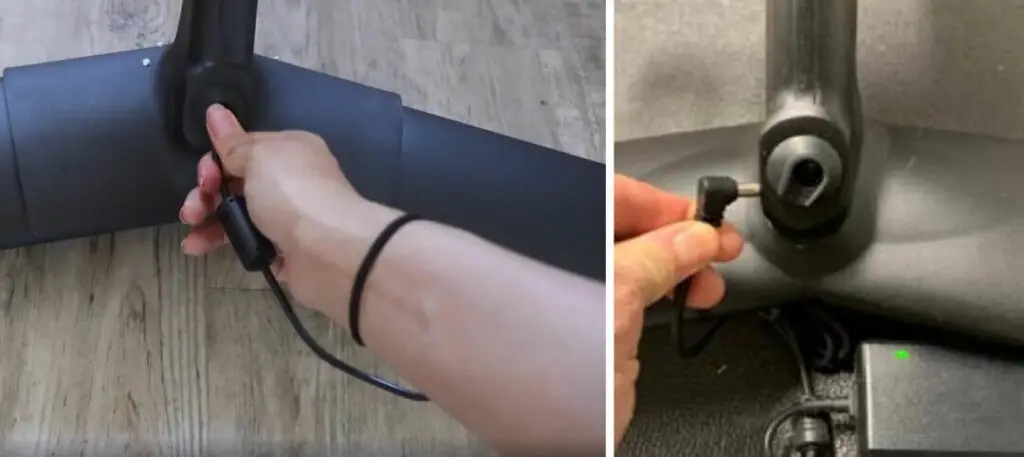
Remove the round barrel connector from the rubber gasket on the back side of the bike and then reconnect it to make sure everything is okay.
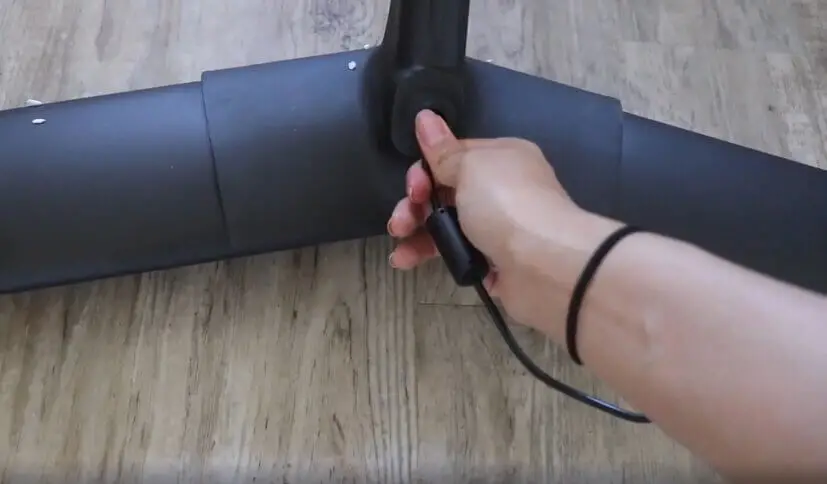
Right below the resistance knob, where it could be caught up or simply loose, given the tight spot it has to snake through. Peloton Regular Bike has two connections. Be sure that these wires are connected.
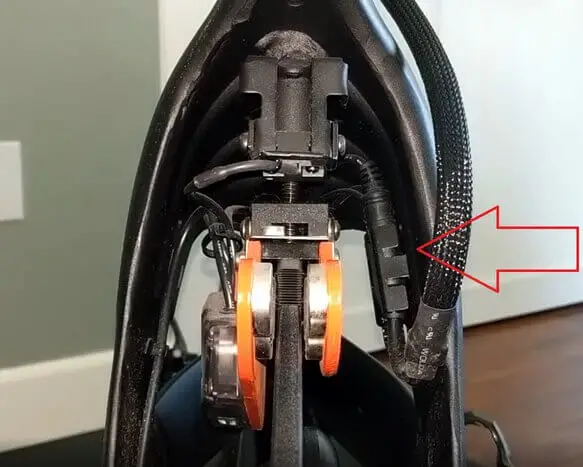
Make sure that your Peloton’s Back of the display panel connections fully connected
After checking all connections, Peloton Screen that won’t start when you press or hold the power button. Riders who have unplugged their bike for several days have reported that when they go to turn on the tablet it simply won’t power on.
In this case, Peloton recommends the following tips;
Ensure the power brick has a GREEN LED lighted to confirm you have AC power to the power brick.
Identify a round barrel connector from the rubber gasket sitting at the bike’s rear and remove it.
Then, Unclip the wire clip from the back of the tablet so you can remove the power connector.
Then, Insert the round barrel connector (bypassing all the internal wiring of the bike) directly into the power port on the back of the tablet and let it charge for 10 minutes.
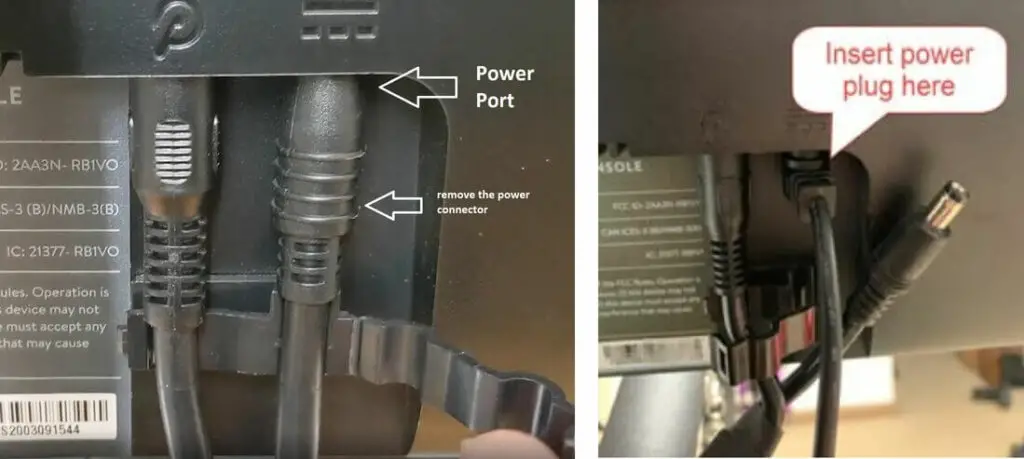
If the tablet turns on after 10 to 15 minutes of charging, you should be good to go.
Then, reset the connectivity with the barrel connector at the rear of the bike and the tablet power connector at the back of the tablet.
Try powering on the tablet, which is now well-powered.
If the tablet doesn’t turn on, try a Tablet Hard Reset by holding down the power button for 10 seconds until it restarts. See Tablet Hard Reset instructions above.
If the tablet still doesn’t turn on, you’ll likely need a new tablet. Contact Peloton Support.
So, Let’s See What You Can Do More With The Unresponsive Bike;
If your Peloton Bike or Bike+ won’t respond at all, don’t panic. There are several additional fixes you can try before assuming it’s a major hardware failure.
Step-by-Step Troubleshooting for an Unresponsive Bike
- Start with a hard reset
Press and hold the tablet’s power button for at least 10 seconds until the screen goes black and restarts. - Power-cycle the entire bike
If the reset doesn’t work, unplug the power cables from:- The back of the bike frame
- The tablet itself
Wait 30 seconds, then reconnect everything securely.
- Check the tablet power connection
If the screen still won’t turn on, unplug the tablet power cable from the rear power jack, then reconnect it firmly. - Inspect and loosen the tablet cable
If the tablet powers on after reconnecting, the cable may have been twisted or pinched. Gently loosen it and make sure it isn’t under tension.- A green LED light on the tablet usually confirms proper power flow.
Where the Tablet Cable Commonly Gets Stuck
If power issues keep returning, inspect these known trouble spots carefully:
- Below the resistance knob
This is a tight area where the cable can easily snag or loosen as it snakes through the frame. - Between the resistance knob and handlebars
Frequent handlebar movement can cause the cable to shift or disconnect over time. - Along the bike frame near the Peloton logo
If the cable is loose or partially disconnected here, reattach it firmly. - Rear cable connection point
This may have been loosened during delivery or when moving the bike between locations. Make sure it’s fully seated.
When to Contact Peloton Support
If your Peloton still won’t turn on after confirming all connections, it’s time to reach out to Peloton Support. At that point, the issue is likely hardware-related rather than a simple power connection problem.
Latest 2025 Proven Fixes for Peloton Bike & Bike+ Power Issues
Based on 2024–2025 user reports and support updates:
- Always plug directly into a wall outlet, not a surge protector or power strip—faulty strips have caused widespread power failures.
- A failed OEM power brick is a common culprit. Try replacing it before assuming the screen is dead.
- For Bike+ models, reseat or replace the USB-C cable connecting the bike base to the touchscreen—this is one of the most frequent causes of a black screen.
- If the tablet is stuck on the logo after an update, try a factory reset (note: this erases local data):
Hold the power button for 10+ seconds, then hold the left arrow and tap the right arrow as the logo appears. - Check for known error codes (such as B0202 or X01TPZ001) using Peloton’s updated support guides.
- Many users in 2025 report reviving “dead” Bike+ screens with a low-cost USB-C or power cable replacement, especially after long periods of inactivity.
If All Else Fails
- If the touchscreen remains unresponsive after replacing cables and the power brick, the display assembly may need replacement.
- If your bike is under warranty, Peloton can ship replacement parts or schedule a technician.
- For DIY users, Peloton’s 2025 support site now includes official part numbers and replacement guides.
FAQs
Does my Peloton tablet need replacement if it won’t power on?
Not always. In many cases, power resets, cable reseating, or replacing the power brick solves the issue. If none of the troubleshooting steps work, Peloton Support can confirm whether a replacement is necessary.
How do you start a Peloton bike?
Connect the bike to a power source using the rear power jack and tablet connector. Once powered, press the tablet’s power button and log in after connecting to Wi-Fi.
How do I turn off a Peloton bike?
Press the tablet power button and select Power Off. For safety, unplug the bike afterward to protect against power surges.
Does the Peloton Bike power differently than the Bike+?
The power process is the same, but the hardware differs. The standard Peloton Bike uses a proprietary power cable, while the Bike+ uses a USB-C charger, which is more universal.
Quick 2025 Power Checklist
- Plug directly into a wall outlet
- Replace the power brick and USB-C cable if needed
- Perform hard and factory resets
- Check Peloton’s 2025 error-code database
- Contact Peloton if the bike is under warranty
Final Thoughts
A Peloton Bike is designed to power on effortlessly—but even experienced users can run into issues. When that happens, systematic troubleshooting is your best solution. By following the steps above, most power problems can be resolved without replacing the tablet or calling for service.
Read Also:
- How to Hard Reset and Factory Reset Peloton Bike and Tread
- Is Peloton Extended Warranty Worth It? Yes! Now It’s Transferable
- Peloton Bike Handlebars Wobble: How to Fix & Tighten
- Do You Need Special Cycling Shoes for Peloton Bike?
- Can You Use Peloton Bike Without Subscription? Yes, You can
- How to fix Peloton no Command?